Visual Hierarchy in PowerPoint: 5 Ways to Improve Your Slides

Most PowerPoint users don't actually have a design problem. They have a decision problem.
Every day, professionals create presentations to explain ideas, share updates, pitch projects, or train colleagues. They know their subject matter inside out. They choose a clean font, use their company colours, and try to make everything look neat and tidy.
Yet, the resulting slides still feel difficult to follow. The audience doesn't know where to look first, the core message gets lost, and the presenter often ends up saying, "Don't read the slide... let me explain."
The issue usually isn't PowerPoint itself. It's a lack of visual hierarchy.
What is Visual Hierarchy?
Visual hierarchy is simply the intentional order in which people notice things.
Imagine walking into a busy room. Your eyes don't absorb every single detail simultaneously. Instead, they naturally land on whatever stands out most, then move to the next most noticeable thing, and so on.
Slides work exactly the same way. When you build a presentation, your job isn't to "decorate" a page. Your job is to decide where your audience’s eyes should go first, second, and third. If you don't make those decisions consciously, your audience has to do the heavy lifting themselves.
The Biggest Mistake: Overloading the Senses
Open almost any corporate presentation, and you will likely see a slide containing:
- A large company logo
- A title
- Six bullet points
- Three icons
- A colourful diagram
- A footer, date, and page number
When a slide looks like this, everything is shouting for attention at exactly the same volume. It is the visual equivalent of walking into a meeting room where ten people start talking to you at once.
When everything on a slide looks equally important, nothing feels important.
Why Hierarchy Matters to Your Audience
Your audience has a limited amount of cognitive energy. During your presentation, they are trying to listen to your voice, look at your slides, and process your message all at once.
The easier you make that job for them, the more likely they are to engage with and remember what you say. Good hierarchy reduces the mental effort required to understand a slide, while poor hierarchy forces the brain to work overtime. Every extra second your audience spends trying to figure out where to look is a second they are not actually listening to you.
Five Ways to Create Hierarchy (Without Being a Designer)
You don't need a design degree to guide an audience's eyes. You just need to combine a few simple, deliberate decisions.
1. Size
The most important element on your slide should almost always be the largest. If your main headline is the same size as your supporting text, you are telling the audience they carry equal weight. A bold, clear title should instantly answer the question: "What is the main takeaway of this slide?"
2. Position
In English-speaking countries, we naturally read from top-left to bottom-right. That top-left corner is prime real estate. Don't waste it on corporate logos or decorative graphics that add no value. Put your most critical message right where the human eye naturally wants to begin its journey.
3. Contrast
Our eyes are hardwired to notice difference. A bold statement surrounded by lighter supporting text naturally attracts attention. The same rule applies to colour: one vibrant accent colour is incredibly powerful, but five different accent colours will just compete with each other. Contrast isn't about making a slide colourful; it's about making one specific element stand out.
4. Spacing
In design, whitespace is not empty space - it is active separation. Elements placed close together are interpreted by the brain as a single group, while generous spacing gives ideas room to breathe. Simply adding more space between your sections can instantly make a slide easier to understand without changing a single word of your content.
5. Weight
Every object on a slide carries visual weight. Bold text feels heavier than regular text. Dark colours feel heavier than light ones. Images and charts feel heavier than plain text blocks. Your job is simply to decide which elements truly deserve that extra weight.
If you'd like to explore these techniques further, our PowerPoint Creative Design course helps you turn everyday slides into clearer, more engaging presentations.
A Simple 3-Second Experiment
To test your current presentation, take one of your existing slides, display it on your screen, and step back a few paces. Now, blur your eyes slightly.
Can you instantly tell what the most important part of the slide is? If the answer is no, your audience won't be able to tell either. Designers use this blur trick constantly because a strong visual hierarchy should work before anyone reads a single word.
One Slide, Two Versions
To see this in action, imagine a slide announcing a major business milestone: "Customer satisfaction increased by 18%."
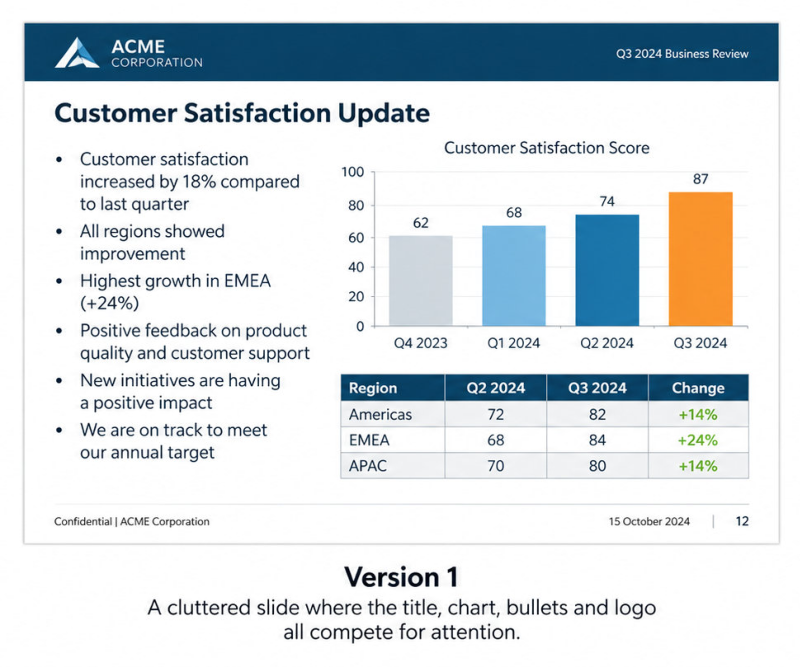
In Version One, everything is formatted uniformly. The title, the chart, the bullet points, and the footer logo all fight for attention. The data is there, but the audience has to go hunting for the actual point.

In Version Two, the number "18%" dominates the slide. The headline explains exactly why that number matters, and any supporting information sits quietly underneath it in a lighter font weight.
The core information hasn't changed at all - only the hierarchy has. Yet, the second version feels dramatically clearer and more impactful.
Start Thinking in Order
The next time you build a slide, step away from the temptation to just make it look "nice." Instead, ask yourself one question:
"What should my audience notice first?"
Once you have clarity on that single answer, the rest of your layout decisions fall into place. Your headlines become punchier, your layouts become cleaner, and your slides feel calmer. Excellent presentation design isn't about decorating a slide; it's about making your message impossible to miss.
Put these ideas into practice
Next public course: 2–3 December 2026
Join our PowerPoint Creative Design course and learn how to create clearer, more engaging presentations using practical techniques you can apply straight away.
£320 + VAT per person | Virtual delivery over two half-days
About the Author

Tom Vanhinsbergh
Digital Learning Specialist at Underscore, with a background in graphic design and a passion for visual communication. Tom combines design thinking, storytelling and technical expertise to help professionals communicate ideas more clearly and effectively. Through his training, writing and digital learning work, he shares practical techniques that make everyday business communication more engaging, memorable and impactful.
Need help applying this in your organisation?
We work with HR, L&D teams and business leaders to turn these ideas into practical, instructor-led training that improves day-to-day performance.